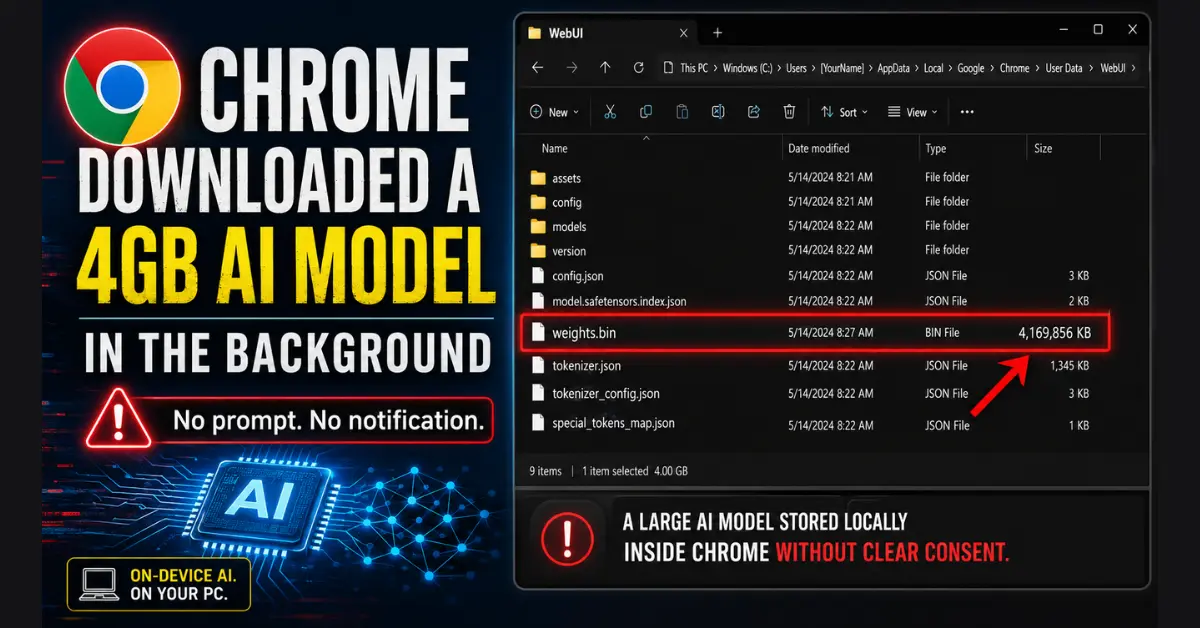
I found a 4GB AI model inside Chrome’s folder
Prefer listening? Play the audio version of this article below.
I found a Chrome 4GB local AI model inside the browser folder on my own computer.
Most of us expect a browser to store cache files, cookies, extensions, updates, and temporary data. But finding a full local AI model inside the browser folder feels different.
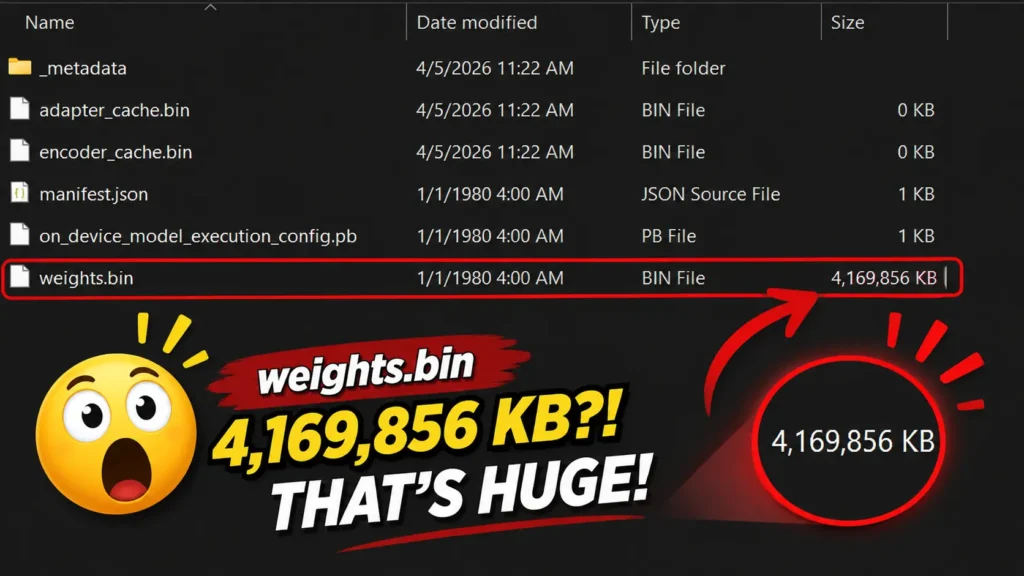
While checking my Windows storage, I found a file called weights.bin inside Chrome’s local user data folder. The file was around 4GB. Recent reporting identified weights.bin as the local model file linked to Gemini Nano inside Chrome, and Google’s own Chrome Help page confirms that Chrome may download and store on-device generative AI models for browser features
This immediately made me ask a simple question:
If local AI models are becoming part of everyday software, how visible should they be to the user?
Chrome AI did not suddenly start in 2026
Chrome’s AI direction is not completely new. Google announced generative AI features for Chrome in January 2024, including tab organization, AI-generated themes, and writing assistance. Google described these as experimental generative AI features for Chrome on Mac and Windows. blog.google
Google’s Chrome Help page also says Chrome may download on-device generative AI models in the background so features that rely on them are ready to use. The same page says these models may be used for features such as helping with writing or rephrasing text, warning users about scams, summarizing web pages, and organizing tabs.
So the story is not simply “Chrome suddenly added AI.” The more important point is that many normal users may only now be noticing that AI models can already exist inside browser folders.
My Concern Goes Beyond Chrome
I do not see this only as a Google Chrome issue. My bigger concern is a pattern that is becoming common with AI features: companies enable something by default, then give users a way to disable it later.
This happened in different ways on other platforms too.
LinkedIn’s own Help page says its “Data for Generative AI Improvement” setting is set to “on” by default unless users opt out. It also says turning the setting off prevents LinkedIn and its affiliates from using your LinkedIn-provided data to train content-generating models going forward, but it does not affect training that already happened.
Meta has also faced similar questions. The European Broadcasting Union reported that Meta planned to use public posts from Facebook and Instagram users in Europe for AI training unless individuals opted out by the deadline.
Slack’s official privacy principles also describe an opt-out process for excluding customer data from helping train Slack global models, where workspace owners need to contact Slack to opt out.
These examples are not exactly the same as Chrome downloading a local AI model. One is about local storage, another is about data use, and another is about workplace data. But they share one important question:
Should AI-related features and data use be enabled first, with users expected to discover and disable them later?
That is my personal concern. I like local AI. I have already explored this idea in my posts about running AI locally with Ollama, building a private local RAG system, and local AI image renaming. But when AI becomes part of browsers, social platforms, office tools, and work apps, users need clearer visibility and control. This is why I think users should know how to check whether the model exists on their own device.
How to check, disable, or remove Chrome’s 4GB local AI model
If you want to check your own Windows PC, open File Explorer and go to this location:
%LOCALAPPDATA%\Google\Chrome\User Data\
Then search for:
weights.bin
If the file exists, you may see a large .bin file around 4GB. In my case, I found this file inside Chrome’s user data folder.
To check the related Chrome setting, open Chrome and go to: chrome://settings/system
Look for an option related to On-device AI. Google’s Chrome Help page says users can manage on-device generative AI models from Chrome Settings → System → On-device AI.
If you decide to remove the file, the safer approach is not to delete random Chrome folders first. Disable the related setting if available, close Chrome completely, and only then remove the file if you want to recover storage space. If you are not comfortable deleting browser files manually, it is safer to only disable the setting and leave the folder untouched.
The open question is simple: Local AI may be useful, but should it ever be invisible?
AI models are starting to move into browsers, phones, operating systems, office tools, and productivity platforms. That can be useful, but users should be able to understand what is being installed, why it exists, how much space it uses, which features depend on it, and how to turn it off. For me, the Chrome 4GB local AI model is not only a storage question. It is also a visibility and user-control question.
Frequently Asked Questions
What is weights.bin in Chrome?
weights.bin is a large file found inside Chrome’s user data folder. It appears to be connected to Chrome’s on-device AI features powered by Gemini Nano, which may support writing help, scam warnings, page summaries, and tab organization.
Why did Chrome download a 4GB local AI model?
Chrome may download on-device generative AI models so some AI features are ready to use locally. The concern is that many users may not clearly notice when a large AI model is downloaded in the background.
How do I disable Chrome’s on-device AI model?
Open Chrome and go to chrome://settings/system, then look for On-device AI. If the option appears, turn it off. Google says once disabled, the model should no longer download or update.