Introduction
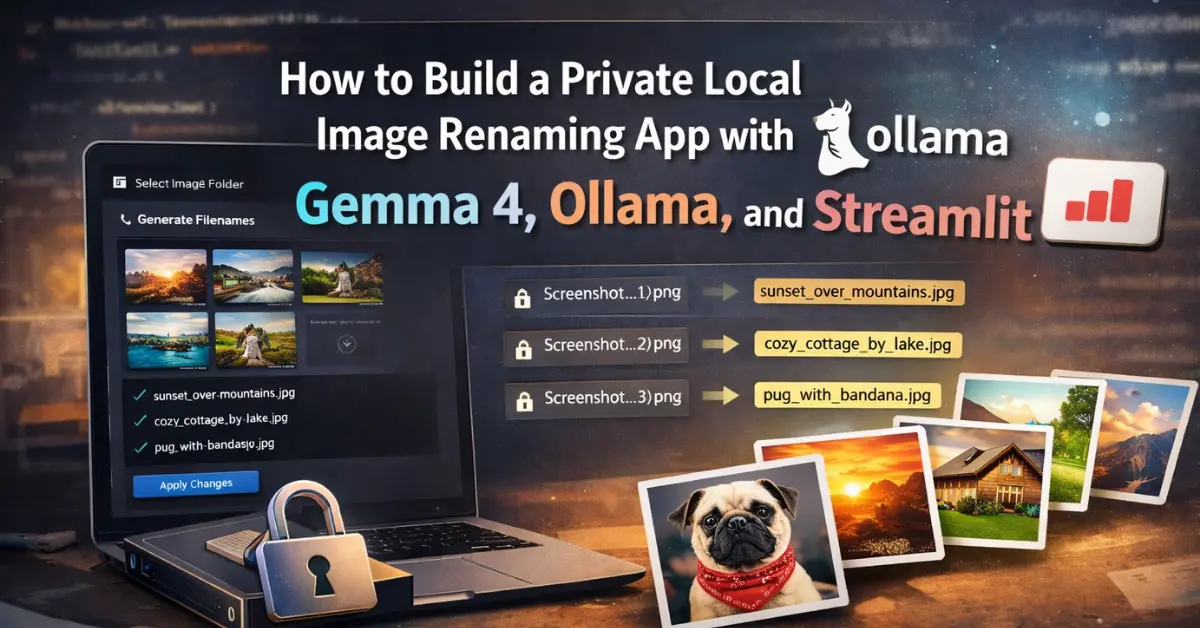
Gemma 4 gives us a practical way to run image understanding locally. This is especially useful when working with sensitive images that should not leave our machine. Instead of sending files to a cloud API, we can now test modern vision models directly on a local setup using Ollama and Streamlit.
This project is useful for more than just building an app. It also serves as a practical way to explore how Gemma 4 behaves in real image tasks on a normal local setup. Since this is being done on a small gaming laptop, we gain a realistic look at usability in a lightweight environment when working with local vision models.
In this guide, we will build a simple local workflow for image understanding with Gemma 4. We will keep privacy as the main priority. The goal is to see how far local vision AI has come. We will explore whether tasks like image analysis, naming, or similar visual understanding can now be handled without relying on cloud tools.
By the End, You Will
- Install and configure Ollama to run Gemma 4 and other local vision models
- Build a lightweight Streamlit app for private local image understanding
- Test Gemma 4 locally on your own laptop using real image inputs
- Generate, review, and apply image-based filename suggestions in a fully local workflow
Prefer listening? Play the audio version of this article below.
Step-by-Step Plan to Build a Local Vision App with Gemma 4
- Install Ollama – run models locally on your computer
- Pull the Vision Models – download Gemma 4 e2b, Gemma 4 e4b, and qwen3-vl:8b
- Build the Streamlit App – create a simple interface for images
- Connect the App to a Model – use one model at a time to generate filename suggestions
- Review and Rename the Images – approve the suggestions and rename the actual image files
Step 1 Install Ollama
If you already followed my earlier PandasAI and Ollama guide, this part will feel familiar. In that post, I explained what Ollama is, why it matters for local AI, and how it helps run models directly on your own machine. That same idea applies here, but this time we are using it for Gemma 4 and other models instead of data analysis.
In simple terms, Ollama is the local engine that lets you download and run AI models on your computer without relying on cloud APIs. It handles the model setup for you and makes local inference much easier, which is exactly what we need for a private image understanding workflow. In the previous post, I also covered the background idea of model size and quantization in more detail, so I will keep this section brief here.
To install Ollama on Windows:
- Go to the official Ollama website.
- Download the Windows installer.
- Run the installer and follow the default steps.
- After installation, open PowerShell and run:
ollama --versionIf a version number appears, Ollama is installed correctly and ready for the next step.
ollama version is 0.20.5If you want the full background and a more detailed walkthrough of Ollama installation, you can check my earlier post: Build a Private AI Data Analyst with PandasAI and Ollama.
Step 2 Pull the Vision Models
Now that Ollama is installed, the next step is to download the vision models we want to test locally. In this guide, the main focus is Gemma 4, but I will also include qwen3-vl:8b as a comparison model.
Just like I explained in my earlier PandasAI and Ollama post, choosing the right model depends heavily on your hardware. Larger models usually give better results, but they also need more GPU memory, RAM, and processing power. Since this project is being tested on a laptop with 16 GB RAM and an NVIDIA RTX 3050 Ti with 4 GB VRAM, I want to keep the setup practical and focused on models that have a realistic chance of running locally. You can check the earlier post for the broader background on model choice and local Ollama setup.
| Model | Why I Chose It |
|---|---|
| Gemma 4 e2b | a lighter Gemma 4 option for local testing |
| Gemma 4 e4b | a larger Gemma 4 variant to compare quality and performance |
| qwen3-vl:8b | a strong vision model to compare against Gemma 4 |
This gives us a simple but useful comparison. Instead of testing too many models, we can focus on whether Gemma 4 performs well enough for private local image understanding, and whether the lighter or larger variant gives better renaming results on a lightweight local machine.
To pull the models, open PowerShell and run:
ollama pull qwen3-vl:8b
ollama pull gemma4:e2b
ollama pull gemma4:e4b
After the download finishes, run:
ollama listYou should now see the models available locally in Ollama.
If you want to quickly confirm that a model is working before connecting it to the app, you can test one directly from PowerShell:
ollama run gemma4:e2bIf the model responds, then your local setup is working correctly and Gemma 4 is ready for the next step.
One small note: in the article text, I may refer to them more simply as Gemma 4 e2b, Gemma 4 e4b, and Qwen3-VL 8B for readability, but in PowerShell you should always use the exact Ollama model names shown above.
Step 2.1 Test Gemma 4 Directly in the Ollama App
Before building the Streamlit app, I first tested Gemma 4 directly in the Ollama app. This is a quick way to confirm that the model is working and can understand images correctly before connecting it to a custom interface.
After selecting gemma4:e2b or gemma4:e4b in Ollama, I uploaded an image and asked the model to describe it or suggest a suitable filename based on the visual content.
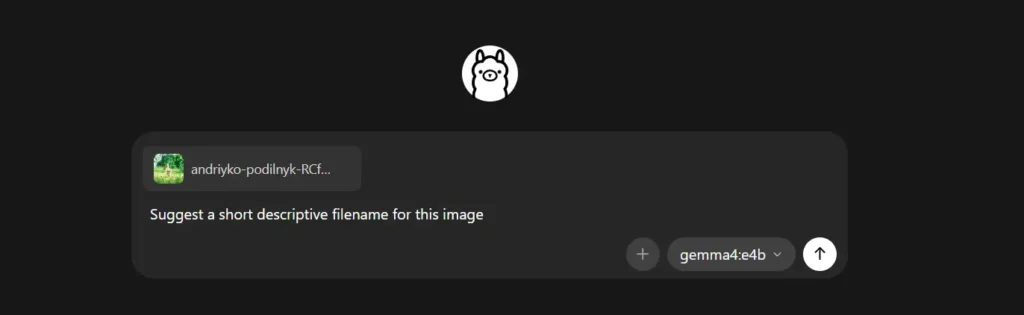

Sample response from Gemma 4:
Here are several filename suggestions for the uploaded image. The model proposed simple options such as kitten_in_grass.jpg and fluffy_kitten_nature.jpg, along with more descriptive or SEO-style alternatives like curious_kitten_field.jpg and cute-kitten-green-grass.jpg. Its top recommendation was kitten_in_grass.jpg, which is short, clear, and matches the image content well.
Step 2.2 What Happens If the Model Does Not Support Images
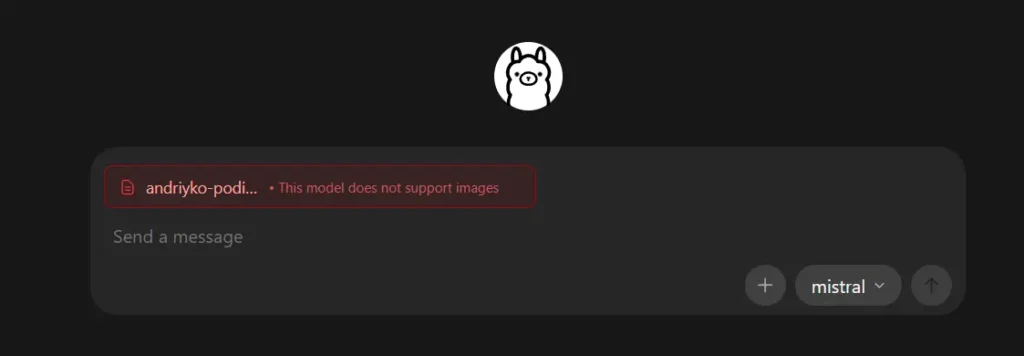
I also tried the same idea with a model that does not support image input. In that case, Ollama returns a response that makes it clear the model cannot process the image properly.
This is a useful check because not every Ollama model is a vision model. For this project, we need models like Gemma 4 and qwen3-vl:8b that can actually inspect image content, not text-only models.
Step 3 Run the Streamlit App
After confirming that Gemma 4 can read images directly in Ollama, the next step is to make the workflow more usable. Instead of uploading one image at a time in the Ollama app, I created a simple Streamlit interface. This interface allows me to test local vision models on a full folder of images, review the suggested filenames, and apply the approved renames directly.
The Core Gemma 4 Call in Python
At the center of the app is a very small Ollama call. This is the core piece that sends an image to Gemma 4 or another selected vision model and receives a filename suggestion. The rest of the app mainly adds local UI, review controls, and usability features around this step. The uploaded code uses ollama.chat(...) with an image path and a prompt that asks for a short descriptive filename only.
import ollama

response = ollama.chat(
    model="gemma4:e4b",
    messages=[{
        "role": "user",
        "content": "Suggest a short descriptive filename for this image. Return only the filename.",
        "images": ["sample.jpg"],
    }],
)

print(response["message"]["content"])
In practice, the app lets me browse a local folder of images, choose one model at a time such as Gemma 4 or qwen3-vl:8b, generate filename suggestions from the image content, review or edit those suggestions, and then rename the actual image files directly from the interface. To make it safer for real use, the app also supports approving only selected renames, and undoing the last rename through saved logs. These are the main usability layers built around the core Gemma 4 model call.
Below is a short video showing how the app works in practice. I recorded myself using it to test the models, review the filename suggestions, and apply the approved renames locally.
Get the Full Code on GitHub
I shared the full code for this project on GitHub in case you want to try it, modify it, or use it as a starting point for your own local Gemma 4 workflow. The repository includes the Streamlit app, the required Python dependencies, and a short README with the basic setup steps.
You can access the code here:
GitHub repository: https://github.com/basilbelbeisi/smart-rename-ai-gemma4
The app is designed to keep the full workflow local. After pulling Gemma 4 and the other supported vision models in Ollama, you can run the app, select a folder of images, generate filename suggestions, review the results, and apply the approved renames directly on your machine.
Conclusion and Observations
This project showed that Gemma 4 can already support a real local image understanding workflow. The main value was privacy. Instead of sending images to a cloud API, the full process stayed on the local machine through Ollama and a simple Streamlit interface. This setup is much more suitable for sensitive or private images.
At the same time, the testing also showed an important limitation: speed. On a laptop with 16 GB RAM and an NVIDIA RTX 3050 Ti with 4 GB VRAM, the workflow was usable, but not fast. The models could read the images and generate filename suggestions, but the response time was still relatively slow, especially when thinking about larger folders or repeated testing. So the experience was practical, but clearly not as smooth as cloud-based tools yet.
The main conclusion is simple: Gemma 4 is already strong enough to make private local image understanding possible in a practical way. Even if the speed still needs improvement on lightweight hardware, this is the real takeaway from this project. It is not only about renaming files but about showing that useful vision-based tasks can now be done locally with Gemma 4, without depending on external APIs or giving up control of your images.
Frequently Asked Questions
What is Gemma 4?
Gemma 4 is Google’s multimodal open model family, which means it can work with both text and images. That is why it fits this local image understanding workflow well.
Which Gemma 4 model should I try first on a normal laptop?
Start with gemma4:e2b. It is the lighter option and more practical for local testing on normal hardware.
What is the difference between gemma4:e2b and gemma4:e4b?
The main difference is size. gemma4:e2b is lighter and easier to run, while gemma4:e4b is larger and may give better results but needs more resources.
Can I adapt this Gemma 4 workflow for other image understanding tasks?
Yes. The same workflow can be used for tasks like image description, visual inspection, or document-image understanding, not only file renaming.